 Mathaster
Bedding
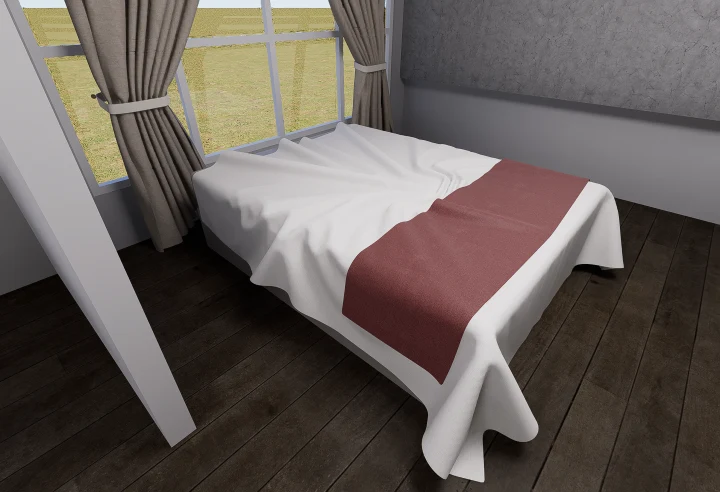
Drape sheets, duvets and runners to suit the mattress and the composition.
3D FABRIC SIMULATION FOR WINDOWS
Create and style 3D fabrics for interior visualization, from a single fold in a bed sheet to a wall of full-height curtains.
14-day free trial · No account required
FEATURES
Drape sheets, duvets and runners to suit the mattress and the composition.
Adjust pillow shapes and set materials by panel.
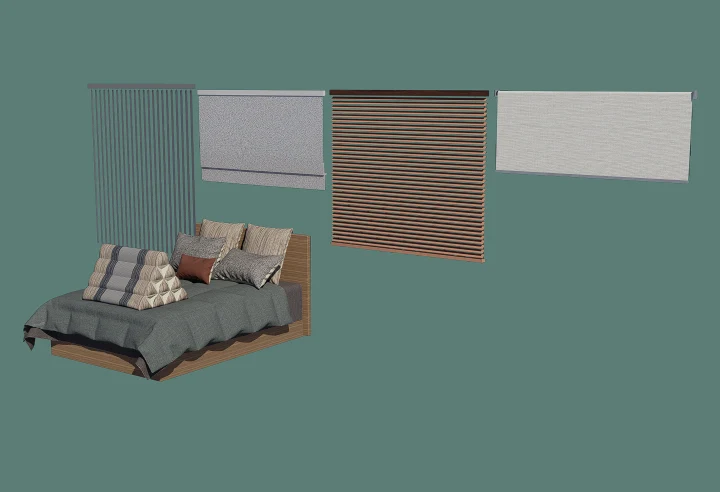
Shape curtain folds and openings. See blinds in the development gallery.
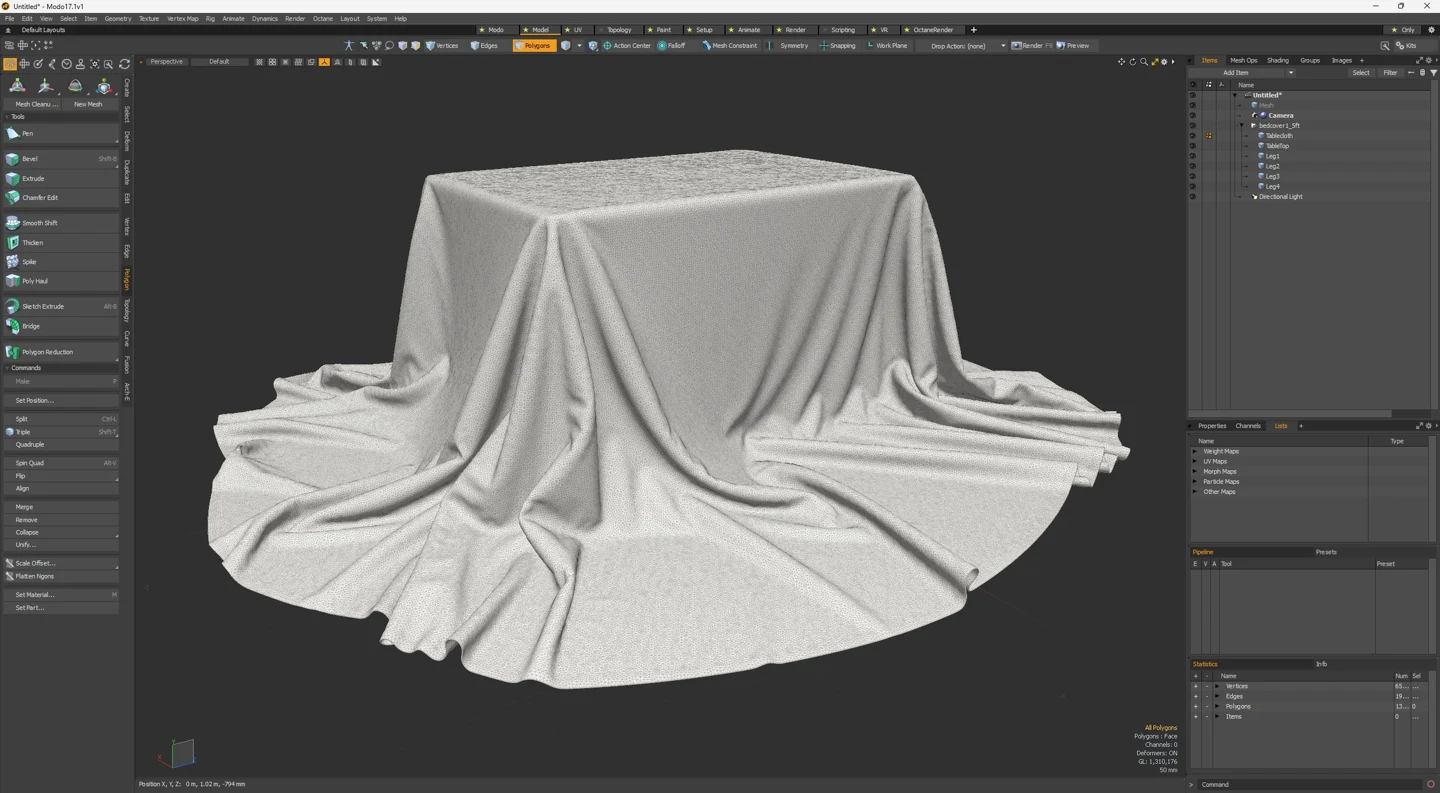
See a floor-length tablecloth and its edge folds in a development test.
Start with a hotel-neat or lived-in look, then adjust the folds for your scene.
SMART MODEL WORKFLOW
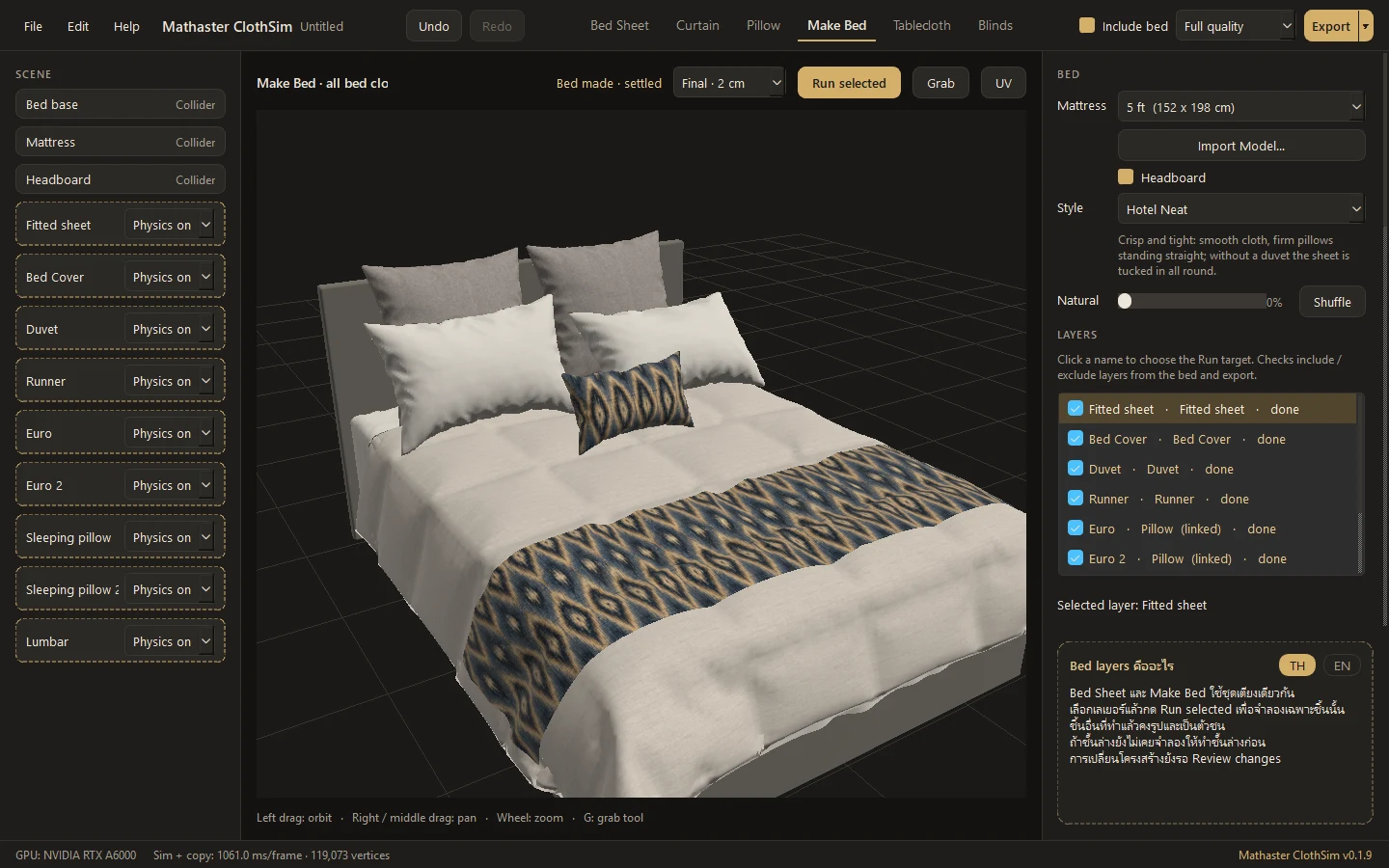
Development builds include OBJ, FBX and DAE exporters. Release-specific steps for D5 Render, SketchUp and Blender are pending verification.
GALLERY
PRICING
Free
For Windows. No account or email required.
Free TrialPricing, device allowance and upgrade terms are being finalized.
Purchasing opens once pricing and terms are confirmed.
Check SHA-256 in PowerShell:
Get-FileHash .\MathasterClothSim-*-Setup.exe -Algorithm SHA256
The trial download will be available without an account or email.
When the release is available, download the Windows installer here, check its SHA-256 hash and follow the installer prompts.
The installer is not yet digitally signed, so SmartScreen warns about unrecognized files. If you downloaded it here and the SHA-256 matches, click More info, then Run anyway.
Not yet. The cloth simulation runs on NVIDIA CUDA, so an NVIDIA GPU is required.
No. The trial works offline with every feature and no watermark. The 14 days count from the first launch on that computer.
No. Install the new version over the old one without uninstalling. Projects and license status are kept. Save your work and close the app first.
The app shows a license window with your machine code. When sales open, provide that code at purchase to receive your key, then paste the key in the same window.
Email or message us on LINE about installation, licensing or using the app.